How to Create a QR Code for Free in 2026: A Step-by-Step Guide
Everything you need to make your first QR code in under a minute: what to put in it, how to style it, which file to download and the mistakes that stop codes from scanning.
In this article ▾
QR codes are everywhere — on restaurant tables, shop counters, school notices, wedding invitations and product boxes. The good news is that making one takes less time than reading this paragraph. In this guide you'll learn exactly how to create a QR code for free, what you can put inside it, how to make it look professional, and the small mistakes that stop a code from scanning.
We'll use PaperBee's free QR code generator for the examples. It works in any browser, needs no sign-up, adds no watermark, and the codes it creates never expire.
What is a QR code, in plain words?
A QR (Quick Response) code is a square pattern of black and white modules that stores a small amount of information — usually a web address, but it can also be plain text, Wi-Fi login details, a phone number, an email, a calendar event or a UPI payment request. When someone points their phone camera at it, the phone decodes the pattern and offers to open the link, join the network, add the event, and so on.
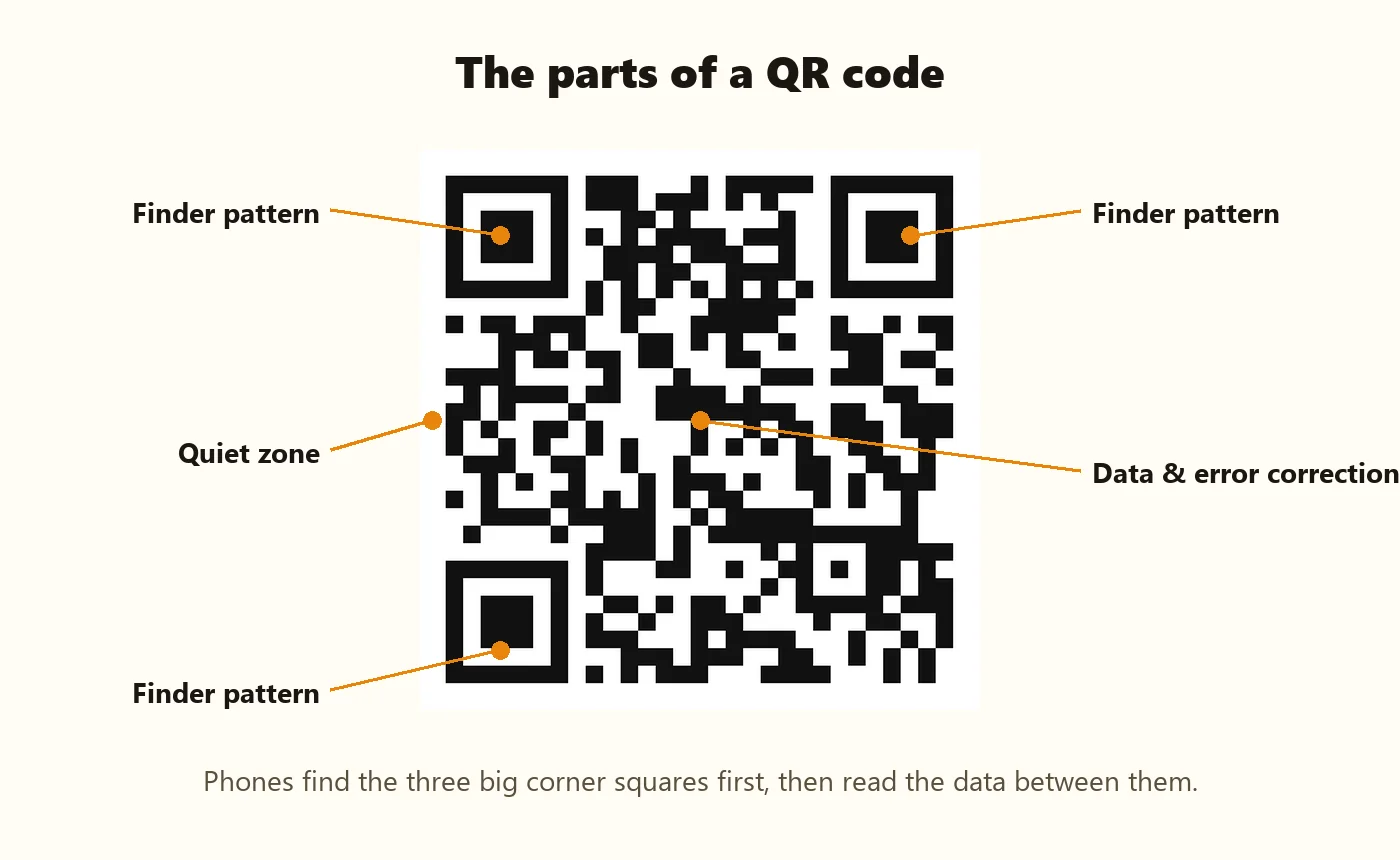
Every QR code also contains error correction — extra data that lets a phone read the code even if part of it is dirty, scratched or covered by a logo. That's why you can safely put a small logo in the middle of a well-made code.
How to create a QR code in 3 steps
Step 1: Choose what the QR code should contain
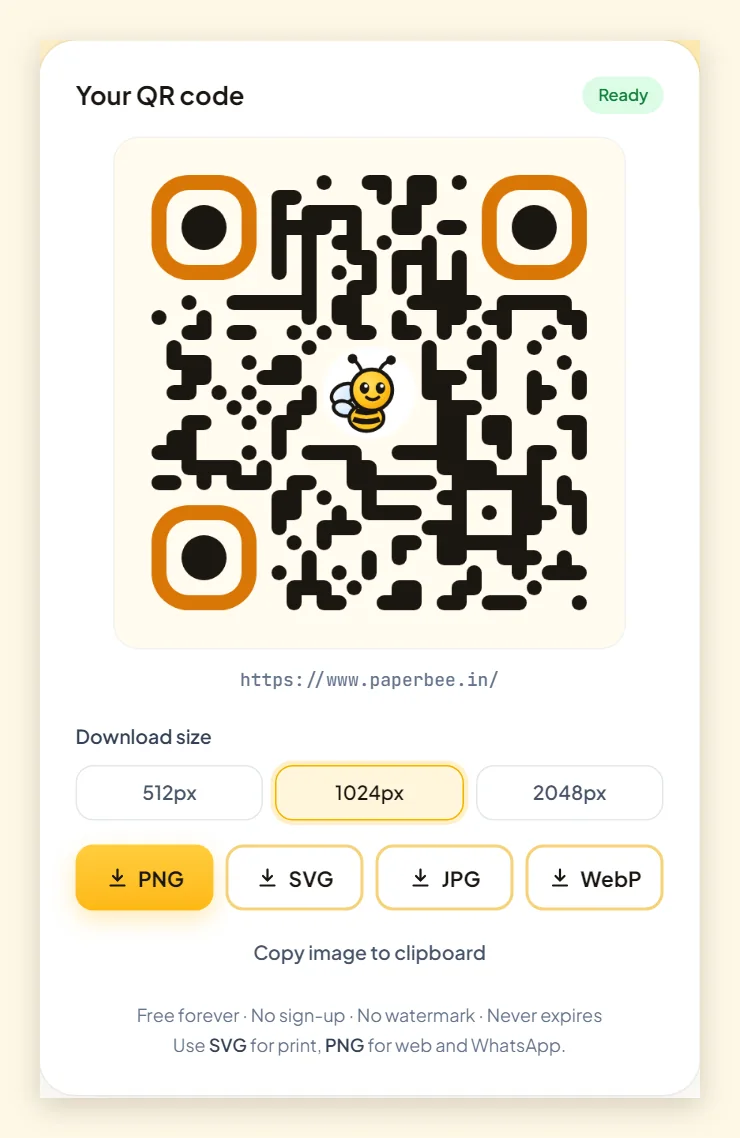
Open the QR code generator and pick a content type at the top. Website / URL is the default and covers most needs — menus, Google Forms, YouTube videos, Instagram profiles, Google Maps locations and online stores are all just links. Paste your link and click Generate QR Code.
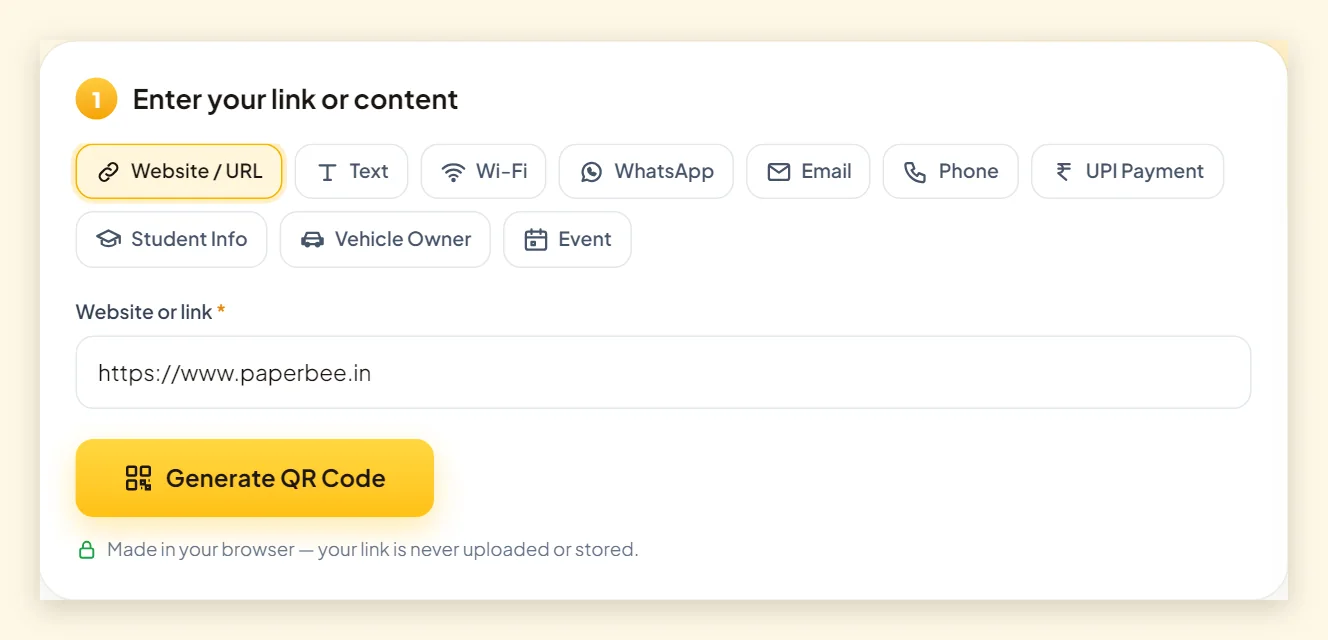
Other content types are useful when a plain link isn't enough:
- Text – a short message, serial number or instructions that show up even without internet.
- Wi-Fi – guests join your network without typing the password. See our Wi-Fi QR code guide.
- WhatsApp – opens a chat with your number and an optional pre-filled message.
- UPI Payment – customers pay you from any UPI app. Read how to make a UPI QR code for your shop.
- Email and Phone – one scan to write to you or call you.
- Student info, Vehicle owner and Event – ready-made forms for ID cards, parking stickers and invitations.
Step 2: Pick a theme or design your own
A plain black-and-white code works perfectly, but a designed code looks more trustworthy and matches your brand. PaperBee shows your code in 12 ready-made themes — click one to apply it instantly.
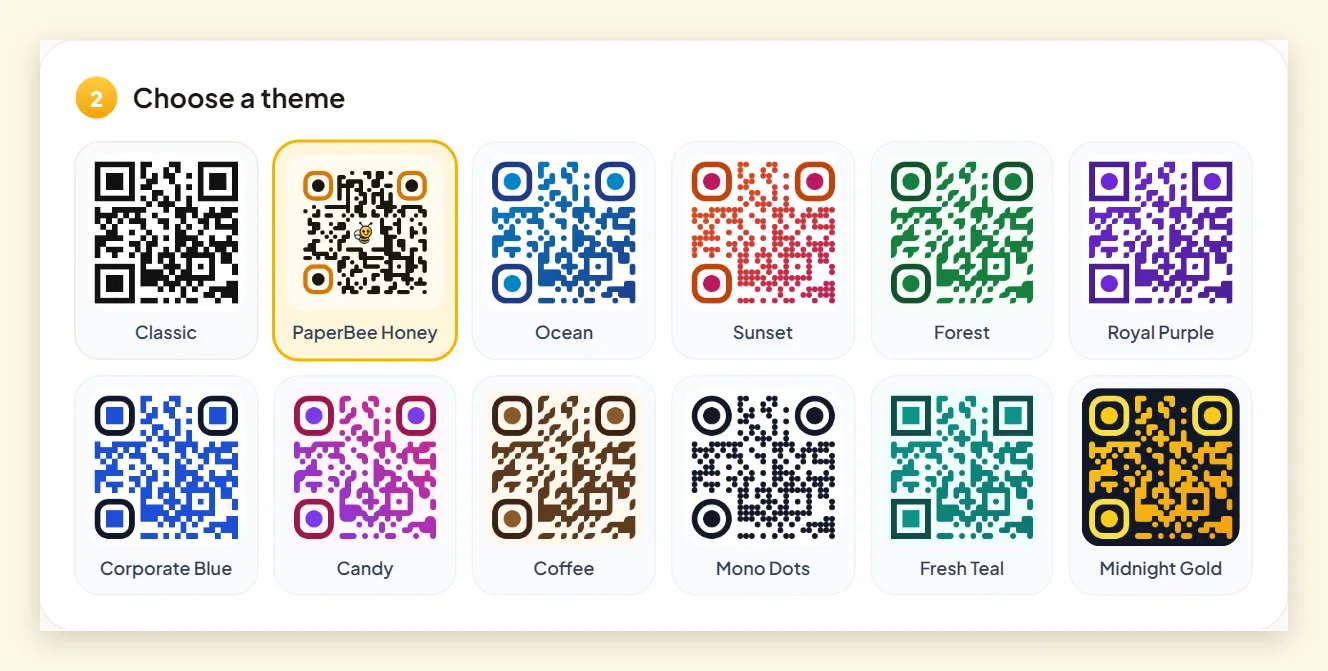
Want more control? Open Customize to change the dot pattern, corner shapes, colours, gradient, background and logo. Our guide to custom QR code design explains which choices are safe and which make codes hard to scan.
Step 3: Download and test
Choose a size (512, 1024 or 2048 pixels) and a format, then download. Before you print or share, scan the code with your own phone — and ideally one more phone — to make sure it opens the right thing.
Which file format should you download?
| Format | Best for | Why |
|---|---|---|
| SVG | Printing: posters, standees, packaging, ID cards | Vector — stays razor-sharp at any size |
| PNG | Websites, presentations, WhatsApp, social media | Sharp, supports transparent backgrounds |
| JPG | Email attachments, older software | Small files, universally supported |
| WebP | Modern websites | Smallest files at the same quality |
Where can you use a QR code?
Once you have a code, it fits almost anywhere people stand still for a few seconds:
- Restaurants and cafés – contactless menus on every table.
- Shops – UPI payments at the counter and links to your catalogue.
- Schools and coaching classes – admission forms, timetables and fee notices. For student ID cards, use the student information QR code or PaperBee's ID card generator.
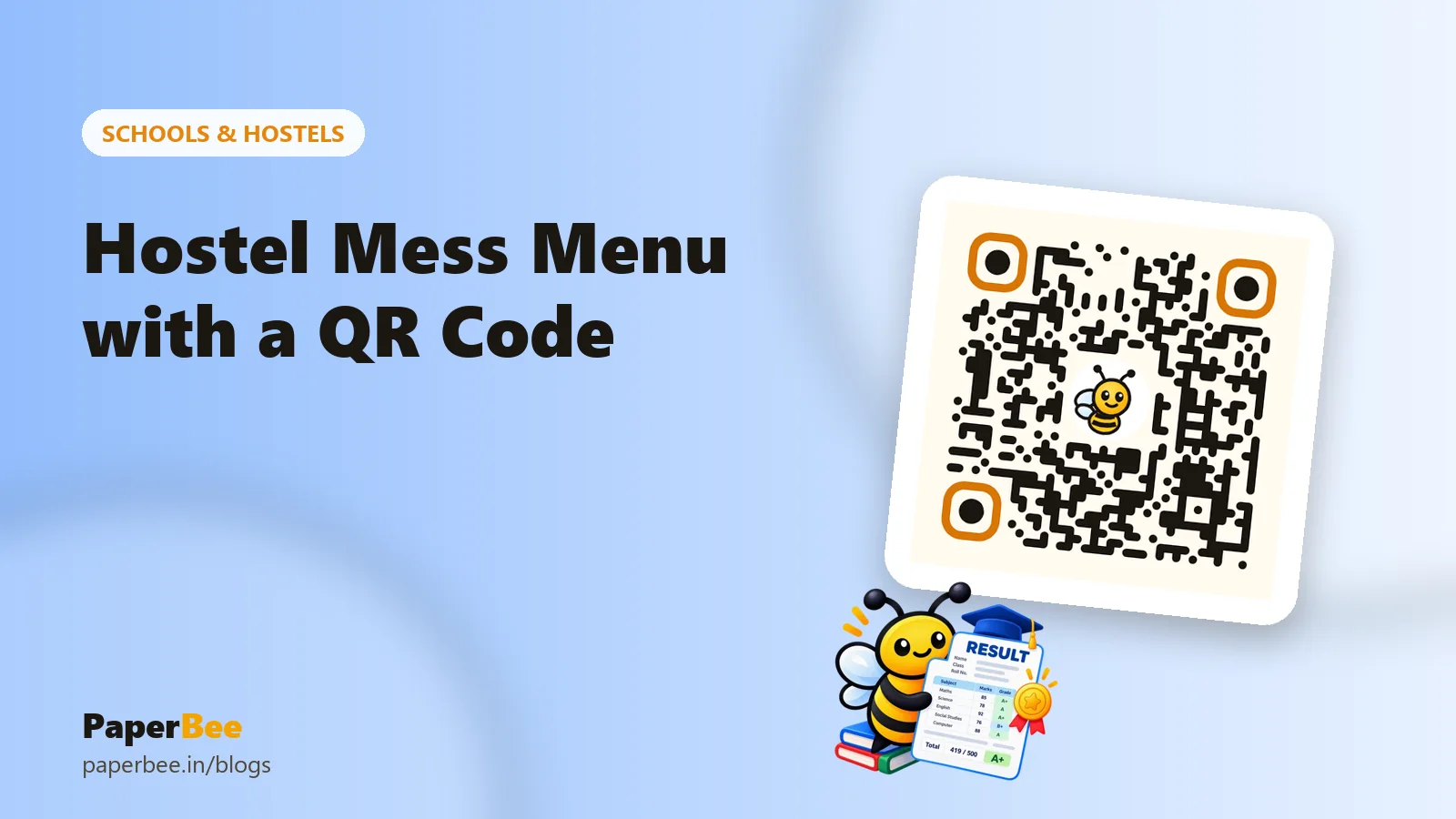
- Hostels and messes – a weekly mess menu that you can update without reprinting.
- Events – invitations that add the event to guests' calendars with the event QR code generator.
- Vehicles – a parking contact sticker so people can call you instead of honking.
6 mistakes that stop QR codes from scanning
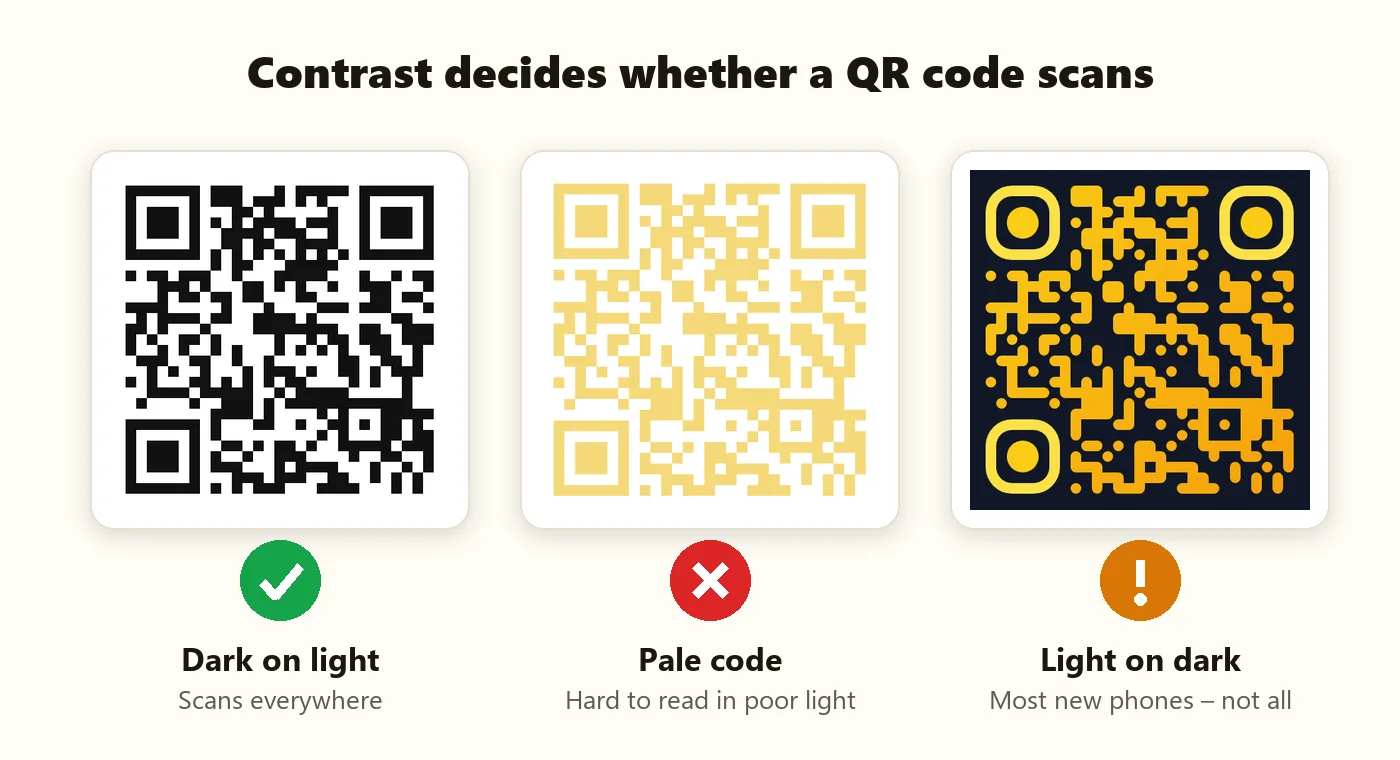
- Low contrast. Pale yellow or light grey codes are hard for cameras to read. Keep the code dark and the background light.
- Printing too small. Keep codes at least 2 × 2 cm, and bigger when people scan from a distance.
- No margin. Codes need a clear border (the “quiet zone”). Don't crop it or place the code on a busy photo.
- An oversized logo. Keep a centre logo under about 30% of the code's width.
- A broken or temporary link. Double-check the URL before printing hundreds of copies.
- Not testing. Always scan the final printed proof — not just the file on your screen.
Our QR code printing guide goes deeper into sizes, paper and lamination.
Do free QR codes expire?
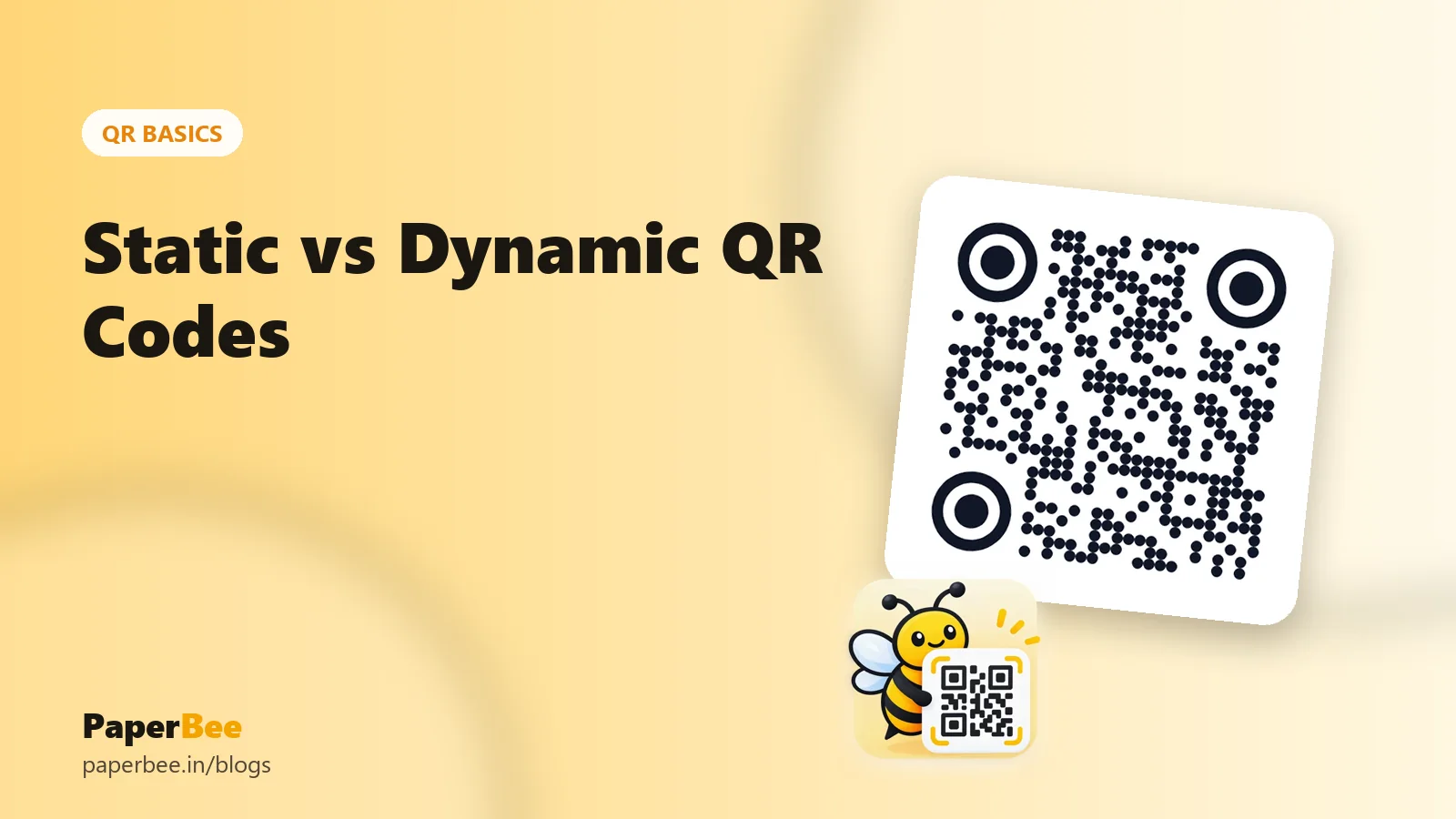
Not on PaperBee. Our codes are static: the link or text is stored inside the pattern itself, so there is no server in between that could switch it off. They keep working forever and can be scanned an unlimited number of times. The trade-off is that you can't change a printed static code — you create a new one instead. If you're curious about the alternative, read static vs dynamic QR codes.
Summary
Creating a QR code is simple: choose the content, generate the code, style it, and download the right format. The details that make a code professional — strong contrast, enough size, a clear margin and a quick test scan — take only a minute more. Start with the free QR code generator, and explore the specialised tools for students, vehicles, events and hostel menus.
Frequently asked questions
Is it really free to create a QR code?
Yes. PaperBee's QR code generator is free with no sign-up, no watermark and no limit on how many codes you create.
Do I need an app to scan a QR code?
No. The built-in camera on modern iPhones and Android phones scans QR codes, and Google Lens works too.
Can I put a logo in my QR code?
Yes. Upload your logo in the Customize panel. PaperBee automatically uses the highest error-correction level so the code still scans.
Can I change the link after printing?
Not for a static QR code — the link is part of the pattern. Create a new code, or point the code at a page you control and update that page.
What size should a printed QR code be?
At least 2 × 2 cm for items held in the hand. For posters, a good rule is QR width ≈ scanning distance ÷ 10.
Written by the PaperBee Team
We build free tools that help schools, shops and organisers create professional documents — from QR codes to ID cards and certificates.