Wi-Fi QR Code: Let Guests Join Your Wi-Fi Without Typing a Password
No more reading out complicated passwords. Make a Wi-Fi QR code in a minute, print a neat table card, and keep your main network safe with a guest network.
In this article ▾
“What's the Wi-Fi password?” is one of the most-asked questions in any café, office, clinic or home with guests. And the answer is usually something like Tp-Link_7F2A / kX9#mQ2! that nobody can type correctly the first time. A Wi-Fi QR code fixes this: guests point their camera at it, tap Join, and they're online.
How does a Wi-Fi QR code work?
A Wi-Fi QR code stores three things in a standard format that phones understand: the network name (SSID), the password, and the security type (WPA/WPA2/WPA3, WEP or none). When someone scans it, the phone recognises it as a Wi-Fi network and offers to connect — no app needed.
| Phone | How to scan | What happens |
|---|---|---|
| iPhone (iOS 11 or later) | Open the Camera app and point it at the code | A banner offers to join the network |
| Android 10 or later | Camera app, Google Lens or the Wi-Fi settings scanner | Tap to connect |
| Older Android phones | Google Lens or a QR scanner app | Shows the network details to join |
How to create a Wi-Fi QR code
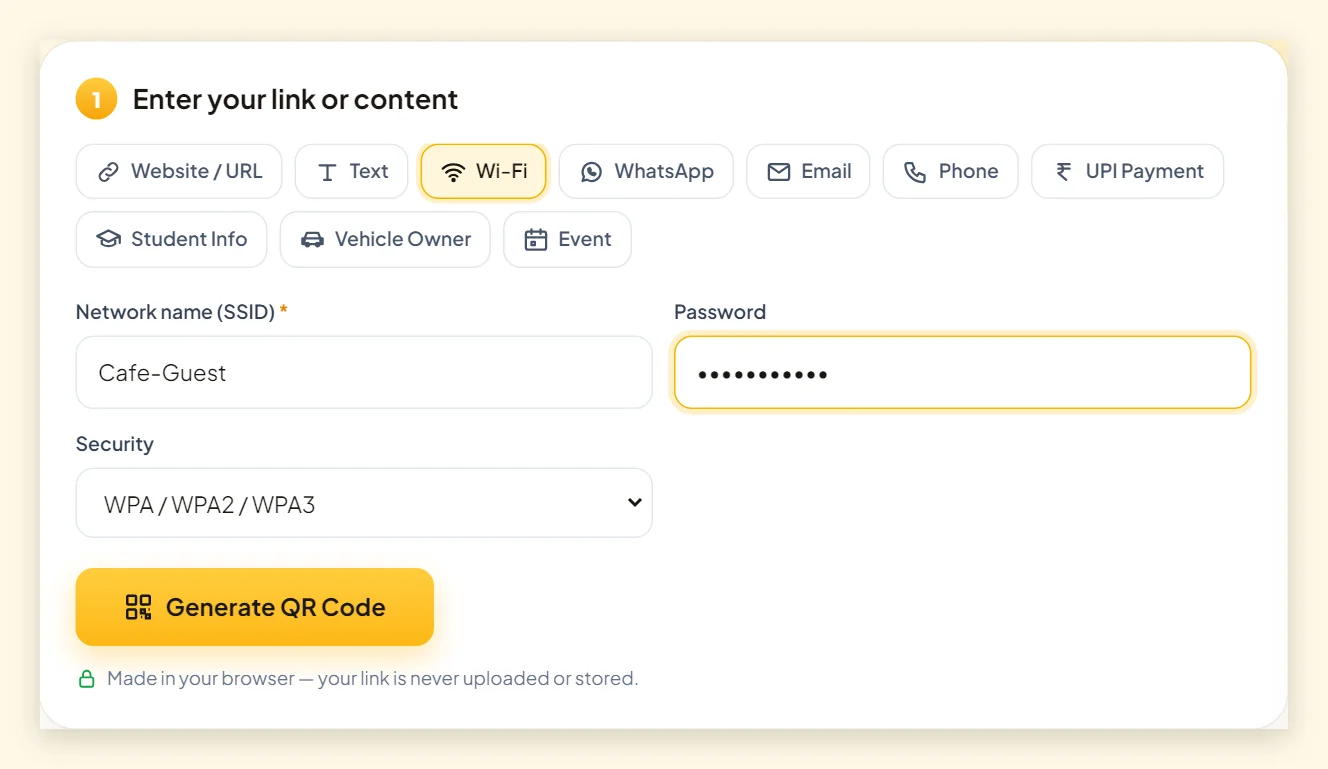
- Open the free QR code generator and choose the Wi-Fi tab.
- Type the network name exactly as it appears on your phone's Wi-Fi list — it's case-sensitive.
- Type the password and choose the security type. Most routers use WPA/WPA2/WPA3; choose “None” only for open networks.
- Click Generate QR Code, pick a theme and download PNG or SVG.
- Scan it with your own phone (after “forgetting” the network) to confirm it connects.
Is it safe to share Wi-Fi with a QR code?
A Wi-Fi QR code contains your password in a form any phone can read, so anyone who scans it can join — and some phones even let users view or re-share the password. That's fine for guests, but think about who can see the code.
Use a guest network
Most modern routers can create a separate guest network. Guests get internet access but can't see your computers, printers or cameras. Put the guest network in the QR code, not your main one.
Change the password now and then
If you run a café or office, changing the guest password every few months keeps former visitors off your network. Because the QR code holds the password, just create a new code and reprint the card — it takes a minute.
- Don't put your main home or office network on a public sign.
- Don't post a photo of the code on social media.
- Keep the router's admin password different from the Wi-Fi password.
Designing a Wi-Fi card guests will notice
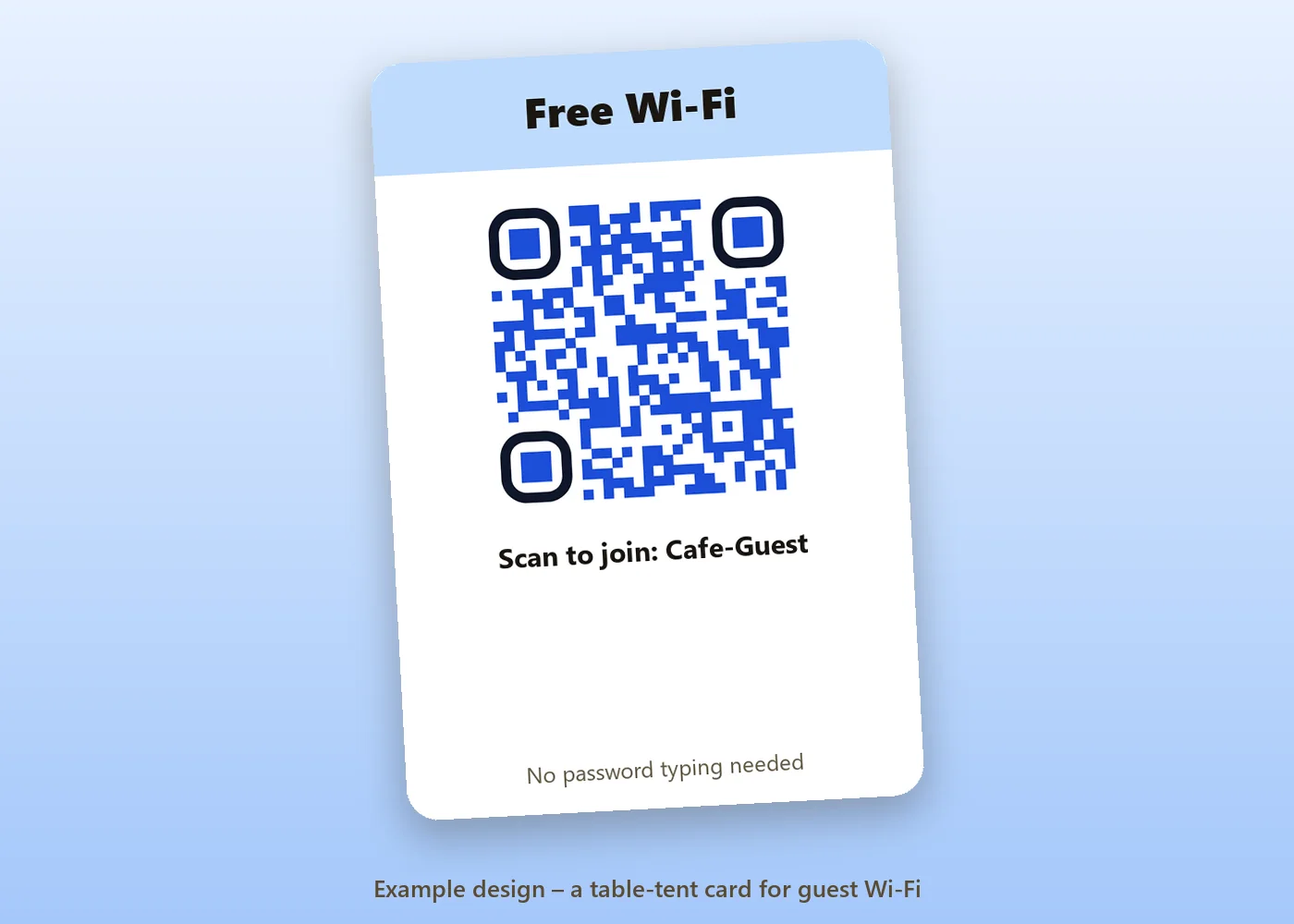
A few details make the difference:
- A clear headline such as “Free Wi-Fi – scan to join”.
- The network name in text under the code, so people know which network they're joining.
- A fallback — print the password in small text for laptops without cameras.
- Size — at least 5 cm wide on a table card, 10 cm on a wall.
- Brand colours — the Corporate Blue or Ocean themes look clean and still scan well. See custom QR code design.
Our printing guide covers sizes, paper and lamination.
Where Wi-Fi QR codes are useful
- Cafés and restaurants – on every table, next to the menu QR code.
- Hotels, PGs and hostels – in rooms and common areas; pair it with a hostel mess menu QR code.
- Clinics and salons – in the waiting area.
- Offices and co-working spaces – at reception for visitors.
- Schools and coaching centres – for staff rooms and events.
- Homes – inside a cupboard door for guests and visiting relatives.
Troubleshooting: the code scans but won't connect
- Check the network name — a single wrong capital letter stops it connecting.
- Check the security type — WPA covers WPA, WPA2 and WPA3 on most routers.
- Make sure the phone is in range of that particular network (some routers have separate 2.4 GHz and 5 GHz names).
- If you changed the password, generate a new code — old codes still contain the old password.
Summary
A Wi-Fi QR code saves everyone time: enter the network name, password and security type, generate, test and print. Use a guest network for anything public, change the password occasionally, and display the code with a clear headline. For other everyday codes, see how to create a QR code and our UPI QR code guide for shops.
Frequently asked questions
Do Wi-Fi QR codes work on iPhone?
Yes. iPhones running iOS 11 or later read Wi-Fi QR codes with the built-in Camera app and offer to join the network.
Is my Wi-Fi password sent to PaperBee?
No. The QR code is created in your browser; your network name and password are never uploaded to our servers.
Can someone see my password from the QR code?
Anyone who scans it can join, and some phones can show the saved password. Use a guest network for public places.
What if I change my Wi-Fi password?
The old QR code will stop connecting. Generate a new code with the new password and reprint it.
Can I make a QR code for an open network?
Yes — choose “None (open network)” as the security type and leave the password empty.
Written by the PaperBee Team
We build free tools that help schools, shops and organisers create professional documents — from QR codes to ID cards and certificates.