How to Make a UPI QR Code for Your Shop (Free, Works with Any UPI App)
Turn your UPI ID into a printable QR code that works with every UPI app — plus how to set a fixed amount, design a counter standee and keep your customers safe from QR scams.
In this article ▾
From tea stalls to tuition centres, a UPI QR code on the counter is now the fastest way to get paid in India. Customers open any UPI app, scan, check your name, enter the amount and pay — no cash, no change, no card machine. If you already have a UPI ID, you can make your own printable UPI QR code for free in about a minute.
What is inside a UPI QR code?
A UPI QR code is simply a payment link in a standard format that every UPI app understands. It contains your UPI ID (also called a VPA, like yourname@okbank), your payee name, the currency (INR), and optionally a fixed amount and a note. When a customer scans it, their app fills in these details for them.
How to create a UPI QR code step by step
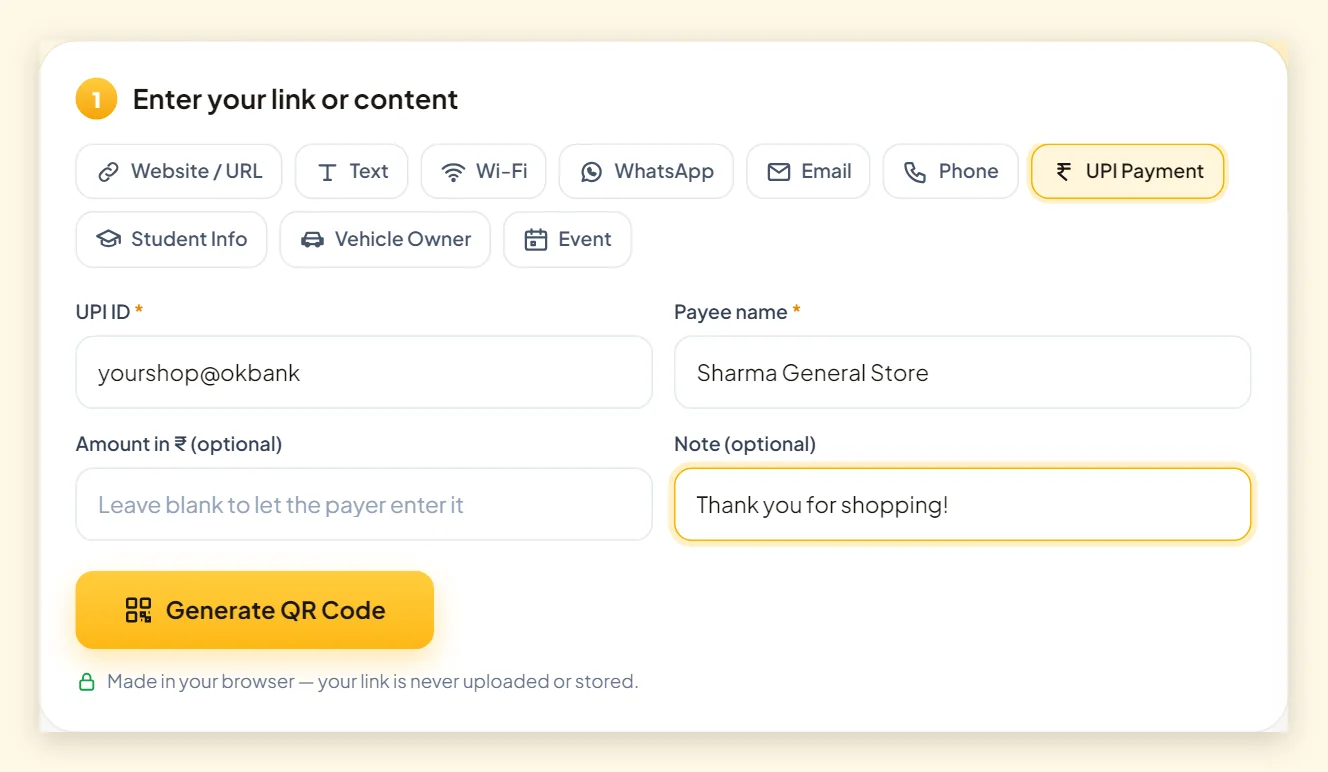
- Open the PaperBee QR code generator and choose the UPI Payment tab.
- Enter your UPI ID exactly as it appears in your UPI app.
- Enter the payee name — your shop name or your own name.
- Optionally enter a fixed amount (for a set price, like a ₹50 entry fee) and a note (like an order number).
- Click Generate QR Code, pick a theme, and download SVG for printing or PNG for WhatsApp.
Fixed amount or open amount?
| Use case | Amount setting | Why |
|---|---|---|
| Grocery or general store | Leave blank | Every bill is different; the customer types the total |
| Parking, entry fee, tea | Fixed amount | Same price every time — fewer mistakes |
| Tuition or society maintenance | Fixed amount + note | The note tells you who paid for what |
| Donations | Leave blank | Let people choose how much to give |
Designing a counter standee that gets scanned
Your QR code competes with everything else on the counter, so make it obvious. A clear headline, your shop name and a large code work better than a tiny sticker.
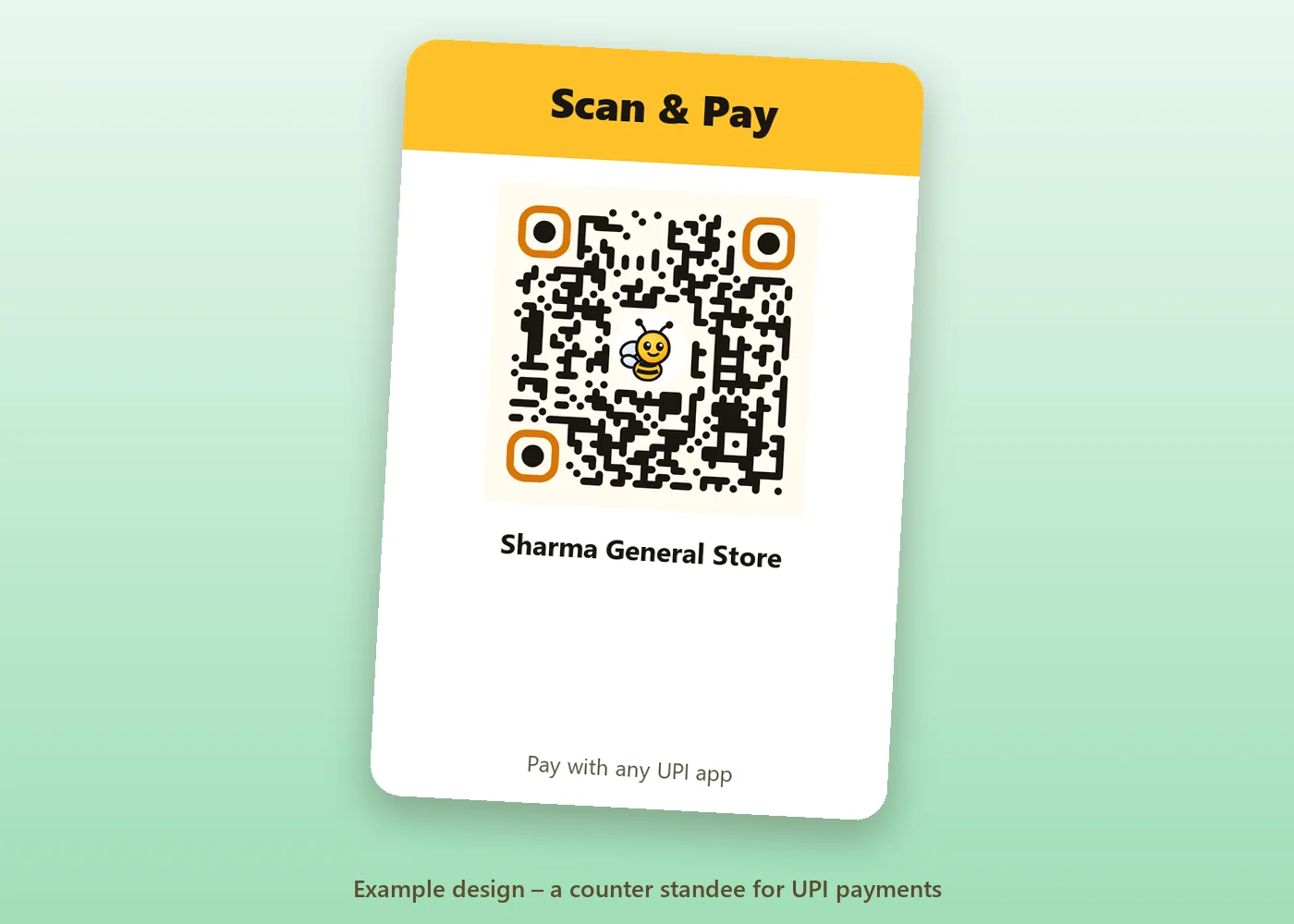
- Headline: “Scan & Pay” or “Pay with any UPI app”.
- Size: at least 8–10 cm wide so customers can scan from across the counter.
- Contrast: a dark code on a white or cream background. Our custom QR code design guide explains why.
- Brand it: add your logo in the centre — PaperBee automatically uses high error correction so it still scans.
- Protect it: laminate the print so it survives spills and fingerprints.
For more on paper, lamination and sizes, see the QR code printing guide.
Keep your customers (and yourself) safe
QR payments are safe when everyone follows two habits. Share these with your staff, and consider printing the first one under your code.
For customers: always check the name
Before entering the PIN, the payer's app shows the name linked to the UPI ID. If it doesn't match your shop or your name, they should stop. This protects against someone sticking a fake QR code over yours.
For you: you never scan to receive money
A common scam is a “buyer” sending a QR code and asking you to scan it to receive payment. Receiving money via UPI never requires scanning a code or entering your PIN. If someone asks you to do that, it's a request to pay them.
Personal UPI ID or merchant QR?
Small shops often start with a personal UPI ID, and a QR code from PaperBee works with any valid UPI ID. As your sales grow, banks and payment apps also offer merchant (business) QR codes with features like settlement reports and payment soundboxes. If you receive a high volume of payments, ask your bank which option suits your business — you can still use PaperBee to design a branded code from any UPI ID they give you.
More QR codes for your shop
- A Wi-Fi QR code so customers can join your guest Wi-Fi.
- A WhatsApp QR code for orders and enquiries — choose WhatsApp in the generator.
- A link to your Google reviews page or online catalogue.
- Professional invoices for regular customers — PaperBee's tools for documents start on the home page.
Summary
A UPI QR code needs only your UPI ID and name. Create it in the UPI Payment tab, test it with a ₹1 payment, print it large with good contrast, and laminate it. Teach customers to check the payee name before paying, and never scan a code to receive money. That's all it takes to accept digital payments professionally.
Frequently asked questions
Does the UPI QR code work with Google Pay, PhonePe and Paytm?
Yes. It uses the standard UPI payment format, so any UPI app can scan it — including Google Pay, PhonePe, Paytm, BHIM and bank apps.
Is it free to make a UPI QR code on PaperBee?
Yes. Creating and downloading the QR code is free, with no sign-up. PaperBee never handles the payment itself — money goes directly to your UPI ID.
Can I set a fixed amount?
Yes. Enter an amount in the optional field. Leave it blank if every customer pays a different amount.
Does PaperBee store my UPI ID?
No. The QR code is generated in your browser and your UPI ID exists only inside the code you download.
What if my UPI ID changes?
Create a new QR code with the new UPI ID and replace the printed one. Static QR codes can't be edited after printing.
Written by the PaperBee Team
We build free tools that help schools, shops and organisers create professional documents — from QR codes to ID cards and certificates.