Digital Hostel Mess Menu with a QR Code: A Warden's Complete Guide
Torn notice-board menus and “what's for dinner?” questions, solved. Create a weekly mess menu online, print one QR code, and update the menu every week without reprinting.
In this article ▾
In most hostels, the mess menu is a sheet of paper taped to a notice board. It gets torn, rained on, scribbled over — and by Wednesday nobody is sure it's still current. Students ask the same question at every meal: “What's for dinner?” A QR code mess menu fixes this. You type the week's menu online once, stick one QR code on the walls, and students scan it to see today's meals on their phone. When the menu changes, you update it online — the printed QR code stays the same.
Why a mess menu needs a different kind of QR code
Most QR codes are static: the information is stored inside the code, so changing it means printing a new one. That's perfect for Wi-Fi details or a vehicle number, but a mess menu changes every week. So PaperBee's hostel menu QR code works differently: the QR code holds a short link to your menu page, and the menu itself lives online where you can edit it. (More on this in static vs dynamic QR codes.)
| Paper on the notice board | QR code menu | |
|---|---|---|
| Updating the menu | Reprint and re-stick every week | Edit online in a minute |
| Where students see it | Only at the notice board | On their phone, anywhere |
| Today's meals | Find the right row yourself | Shown first, with timings |
| Special notices | Another sheet of paper | A note at the top of the menu |
| Cost | Printing every week | Free |
What students see when they scan
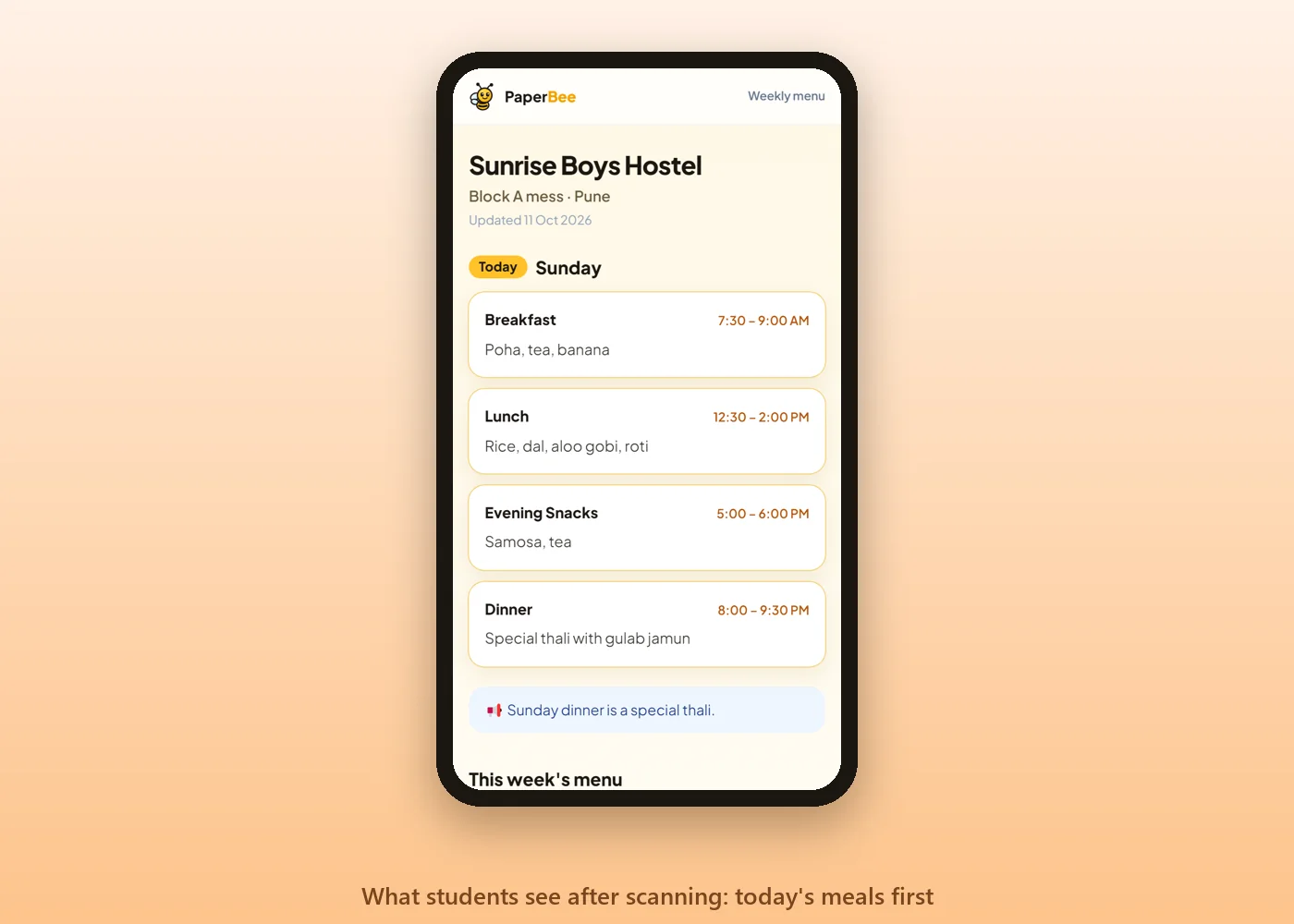
Students don't need an app or an account. Scanning opens a simple, fast web page with your hostel's name, today's meals first — breakfast, lunch, snacks and dinner with timings — then the full week below. Any notice you add (a festival special, a closed day) appears at the top.
How to set up your QR code mess menu
- Open the hostel menu QR code page. No login is needed.
- Enter your hostel or mess name, an optional block or location, and a note for students.
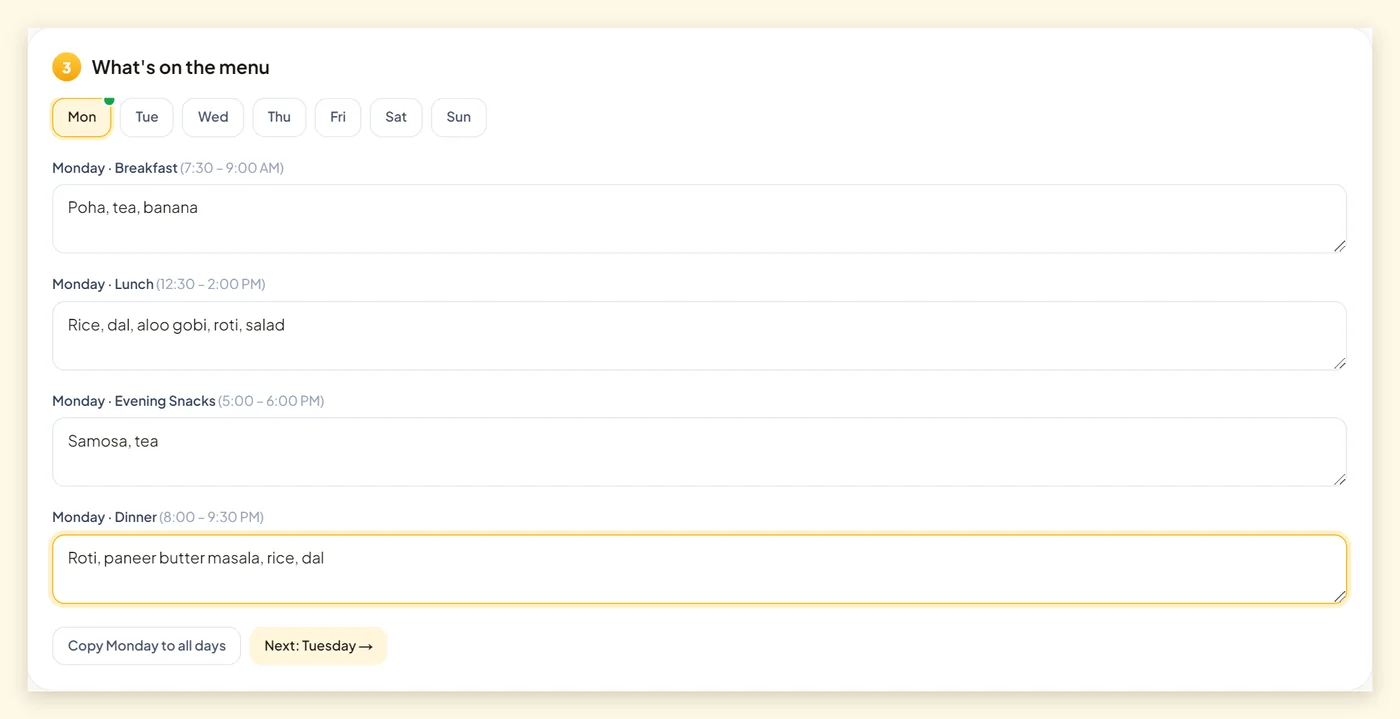
- Set your meals and timings. Breakfast, Lunch, Evening Snacks and Dinner are filled in for you; rename them, change times, or add up to six meals (for example “Night Milk”).
- Fill in Monday's dishes, then use Copy Monday to all days for anything that repeats, and adjust the other days.
- Click Create menu & QR code. Pick a theme, download the QR code and print it.
Your private edit link — keep it safe
There are no accounts. Instead, when you create the menu you get a private edit link. Anyone with that link can change the menu, so treat it like a password:
- Save it in your phone's notes or email it to yourself straight away.
- Don't share it in student groups — share only the QR code or the menu link.
- The browser you created the menu in also stays able to edit it for a year.
- Lost the link and changed browsers? We don't store it, so we can't recover it — you would create a new menu and QR code.
Where to put the QR code
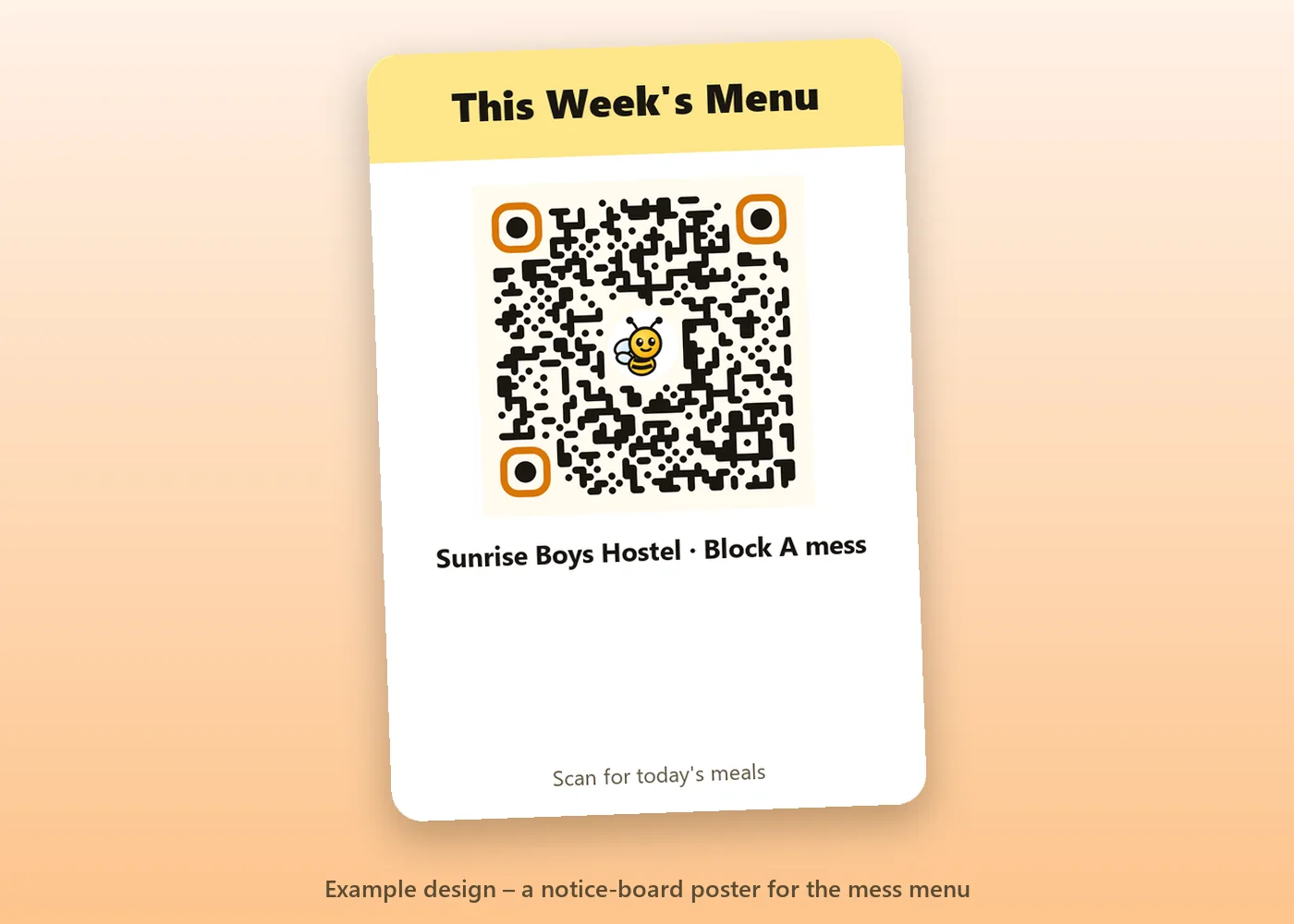
- Dining hall entrance — where students queue.
- Notice boards on every floor.
- Inside room doors — one small sticker per room.
- The hostel WhatsApp group — share the menu link itself once at the start of term.
Print the code at least 10 cm wide for walls and laminate it. Our QR code printing guide covers sizes and materials, and you can pair it with a Wi-Fi QR code in common areas.
A simple weekly routine
Sunday evening: update the menu
Open your edit link, change the week's dishes and timings, and save. Students learn that the menu is fresh every Monday, so they keep checking it.
Use the note for news
Festival specials, guest nights, a mess holiday, changed timings during exams — put it in the note at the top so nobody misses it.
Collect feedback
Some hostels add a link to a feedback form in the note. It's a simple way to learn which dishes to repeat and which to drop.
Who else can use a QR code menu?
- PGs and co-living spaces sharing the weekly food plan with residents.
- Tiffin and mess services sending the week's menu to members.
- Office canteens showing today's lunch on every floor.
- Boarding schools, where parents also like to see the meal plan.
- Hospital and factory canteens with meals for every shift.
Summary
A QR code mess menu replaces the torn notice-board sheet with a menu students can check from anywhere. Create it once, print one code, keep your private edit link safe, and update the menu every week in a minute. For student ID cards and other school documents, explore the student QR code and PaperBee's ID card generator.
Frequently asked questions
Do I need to create an account?
No. You get a private edit link when you create the menu, and the browser you used stays able to edit it.
Can I change the menu after printing the QR code?
Yes. The QR code links to your menu page, so every change shows up immediately for everyone who scans it.
Do students need an app?
No. The phone camera opens a simple web page that works on any smartphone.
Is the QR code mess menu free?
Yes. Creating, editing and sharing the menu is free.
What happens if I lose the edit link?
You can still edit from the browser where you created the menu. We don't store the link, so keep a copy in your notes.
Written by the PaperBee Team
We build free tools that help schools, shops and organisers create professional documents — from QR codes to ID cards and certificates.