Event QR Codes: Add Your Event to Every Guest's Calendar in One Scan
Guests forget dates, not invitations. An add-to-calendar QR code puts your event — with time, venue and notes — straight into their phone calendar, complete with a reminder.
In this article ▾
You can design the most beautiful invitation in the world and still have guests turn up on the wrong day. People see an invitation once, then rely on their phone's calendar for everything else. An event QR code closes that gap: guests scan it, tap Add to calendar, and your event is saved with the right date, time, venue and notes — plus an automatic reminder.
How an add-to-calendar QR code works
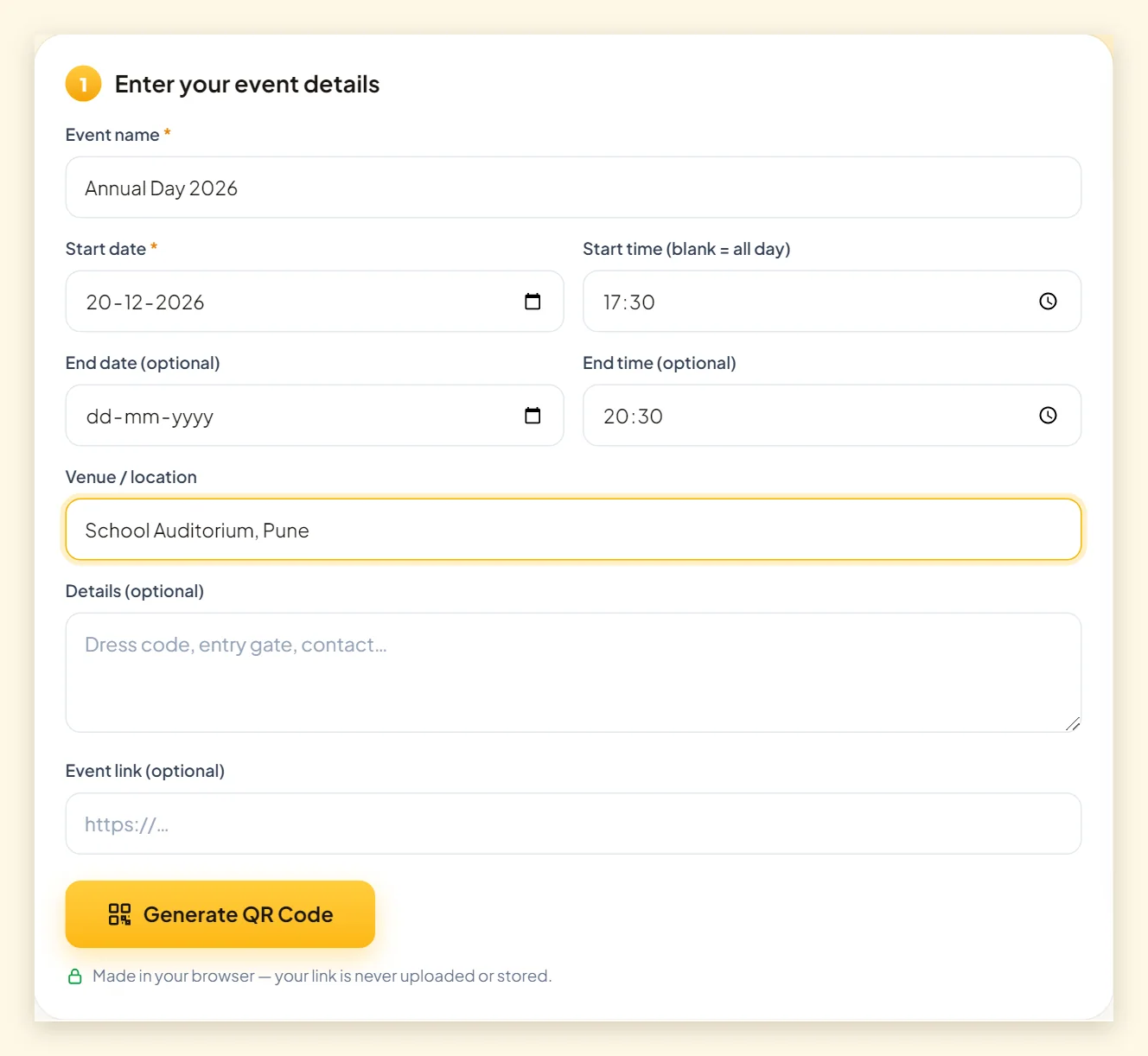
PaperBee's event QR code generator writes your event in the standard calendar-event format (the same format calendar apps use to share events with each other). When someone scans the code, most phone cameras and QR scanner apps recognise it as an event and offer to add it to Google Calendar, Apple Calendar or Outlook, with every field already filled in.
| Field | Required? | Notes |
|---|---|---|
| Event name | Yes | Shown as the calendar entry's title |
| Start date | Yes | Leave the time blank for an all-day event |
| Start & end time | Optional | No end time? We assume one hour |
| End date | Optional | For multi-day events like fairs or conferences |
| Venue / location | Optional | Appears in the calendar entry; tap it to search maps |
| Details | Optional | Dress code, entry gate, contact person |
| Link | Optional | RSVP form, livestream, ticket page or map |
How to create an event QR code
- Open the event QR code generator.
- Enter the event name and start date. Add a start and end time — or leave the time empty for an all-day event.
- Add the venue, a few details and an optional link (an RSVP form works well).
- Click Generate QR Code, choose a theme that matches your invitation and download.
- Scan the code yourself and check the calendar entry before printing.
Where event QR codes work best
Weddings and family functions
Add a small QR code to the back of the card or the RSVP insert with the line “Save the date — scan to add to your calendar.” For functions spread over several days, create one code per event (haldi, sangeet, reception) so each gets its own calendar entry.
Schools and coaching institutes
Annual days, parent-teacher meetings, sports days, exam schedules and admission open days are perfect candidates. Print the code on the circular or notice, and share the PNG in the parents' WhatsApp group. Pair it with printed certificates from the certificate generator for prize-giving days.
Conferences, seminars and workshops
Put a code for each session on badges and posters, and add the session link (for livestreams) in the link field. For workshop batches, one code on the flyer means fewer “when does it start?” calls.
Community and religious events
Pooja timings, community meetings, blood donation camps and society AGMs all benefit from a calendar reminder.
Designing the QR code into your invitation
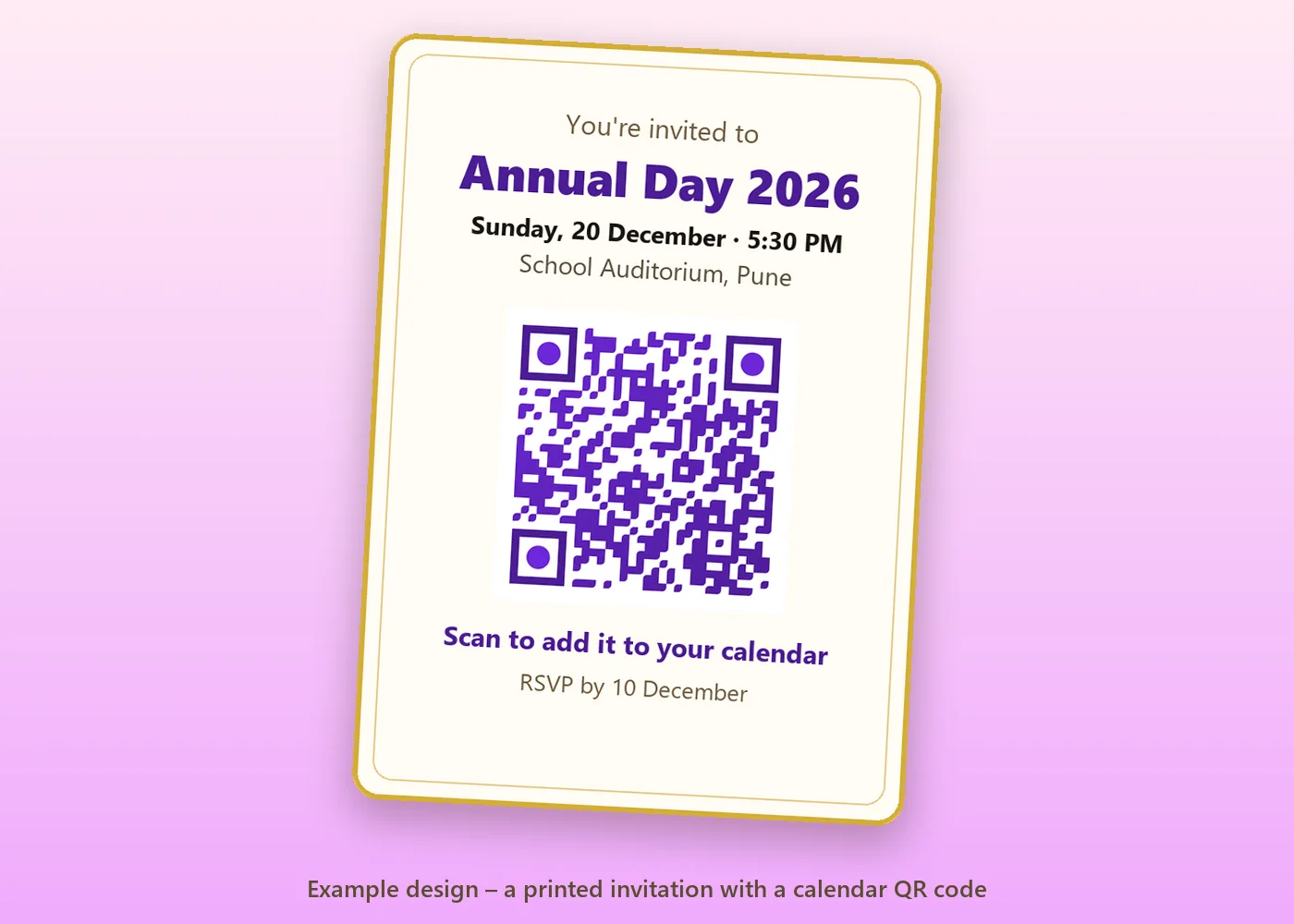
- Place it near the date and venue — that's where guests look for practical details.
- Explain it in one line: “Scan to add to your calendar”.
- Match the colours to your card — the Royal Purple, Candy and Coffee themes suit invitations. Keep the code dark enough to scan; see custom QR code design.
- Size: at least 2 × 2 cm on cards; larger on posters and banners.
- Format: download SVG for the printer, PNG for WhatsApp and email invites.
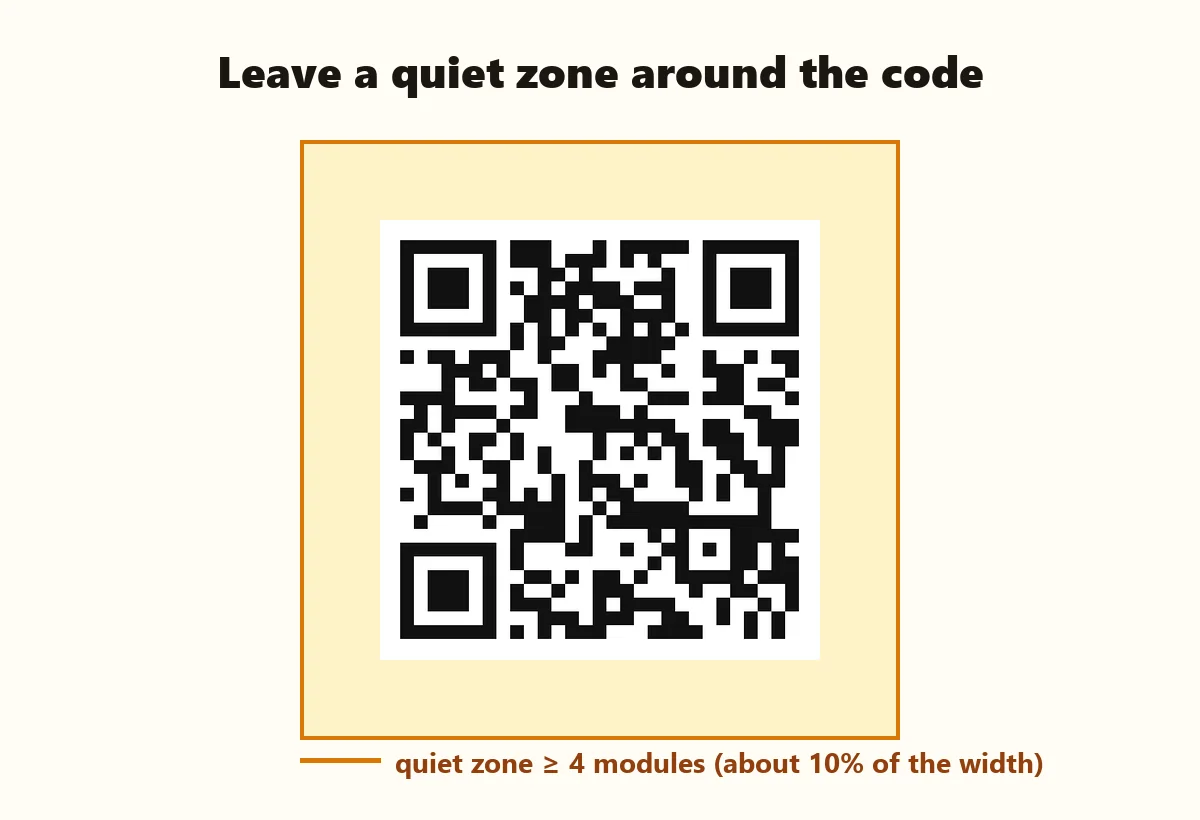
More on sizes and paper in the QR code printing guide.
What if the date or venue changes?
An event QR code is static: the details are part of the pattern, so a printed code can't be updated. If plans change, create a new code and share it digitally, and let guests know the old entry is out of date. If changes are likely, put a link to an event page you control in the link field — you can update that page any time. Static vs dynamic QR codes explains the trade-off.
Summary
An add-to-calendar QR code turns a paper invitation into a phone reminder. Enter the event name, date, time and venue, generate the code, place it near the event details with a short explanation, and test it once. For other occasions, explore the student QR code for school events and the main QR code generator for links, Wi-Fi and WhatsApp.
Frequently asked questions
How does an event QR code add to the calendar?
It contains the event in the standard calendar format. Most phone cameras and QR apps recognise it and offer to add it to the calendar with all details filled in.
Does it work on iPhone and Android?
Yes, on most modern phones. Some older scanner apps show the details as text instead of offering to add them.
Can I make an all-day or multi-day event?
Yes. Leave the start time empty for all-day events, and set an end date for events that span several days.
Can I add an RSVP link?
Yes. Paste your RSVP form, ticket page or livestream link into the optional link field.
What if the event date changes?
Create a new QR code with the new date. Printed static codes can't be edited.
Written by the PaperBee Team
We build free tools that help schools, shops and organisers create professional documents — from QR codes to ID cards and certificates.